Create a decision
Define what needs deciding. Add as many axes as you need — dates, location, hotel tier, meal plan. Each axis gets 2–10 options.
Or start from a template
Comma-separated names. Lets the Results tab show "3 of 5 responded · still waiting on Alice, Bob". Leave blank to skip.
Score the options
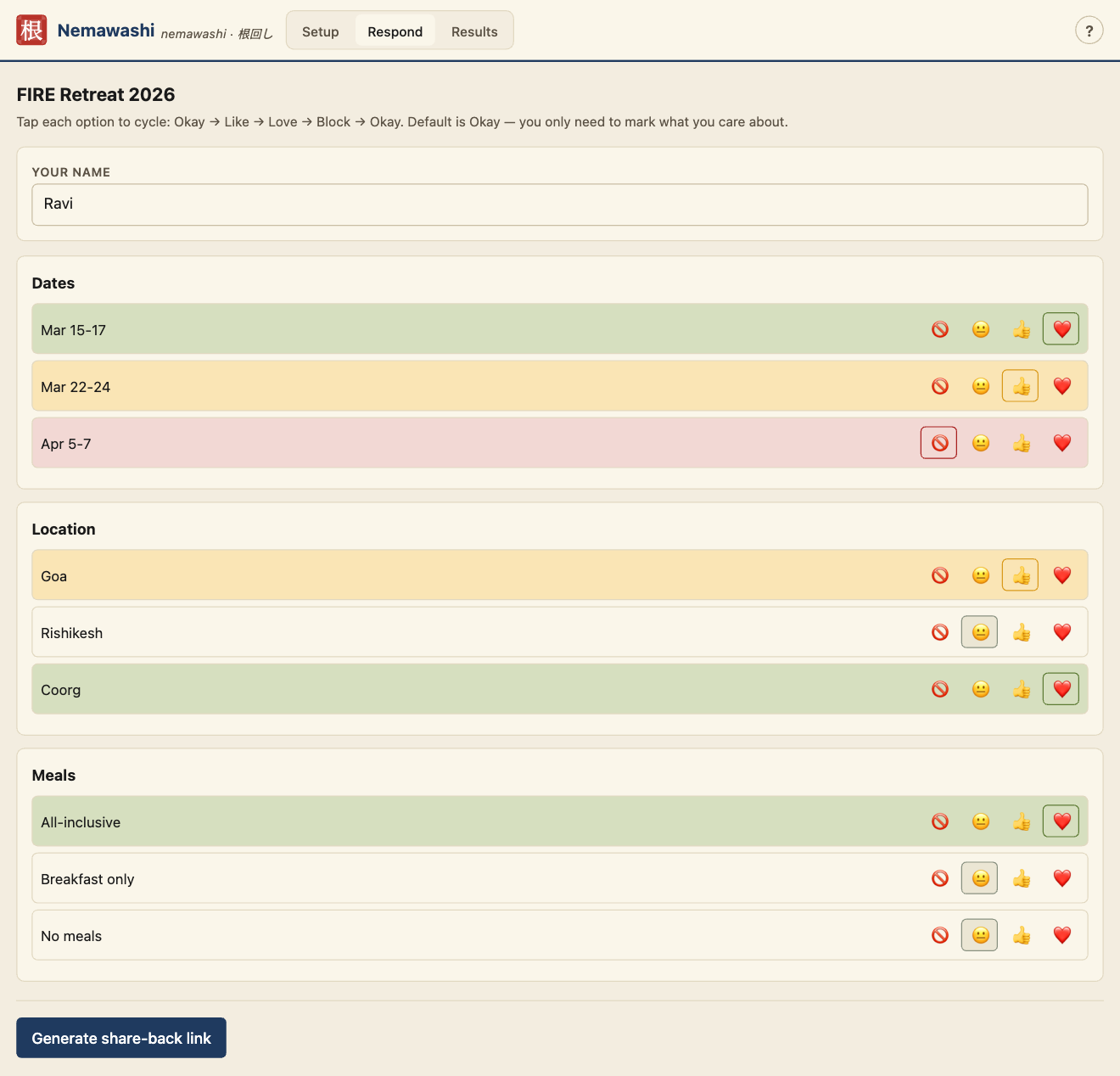
Tap each option to cycle: Okay → Like → Love → Block → Okay. Default is Okay — you only need to mark what you care about.
Tally responses
Click each share-back link as it arrives in your group chat — each one auto-merges into the results below. Or paste response codes manually if you have them in another format.
Response codes
How to use Nemawashi
Nemawashi helps a group align across multiple decisions at once — dates AND location AND hotel AND meals, not just one axis. Each person scores every option, the tool finds the combination that maximises group satisfaction while respecting any vetoes.
The group chat is the transport layer. No server. No accounts. No data leaving your device.
Define what needs deciding
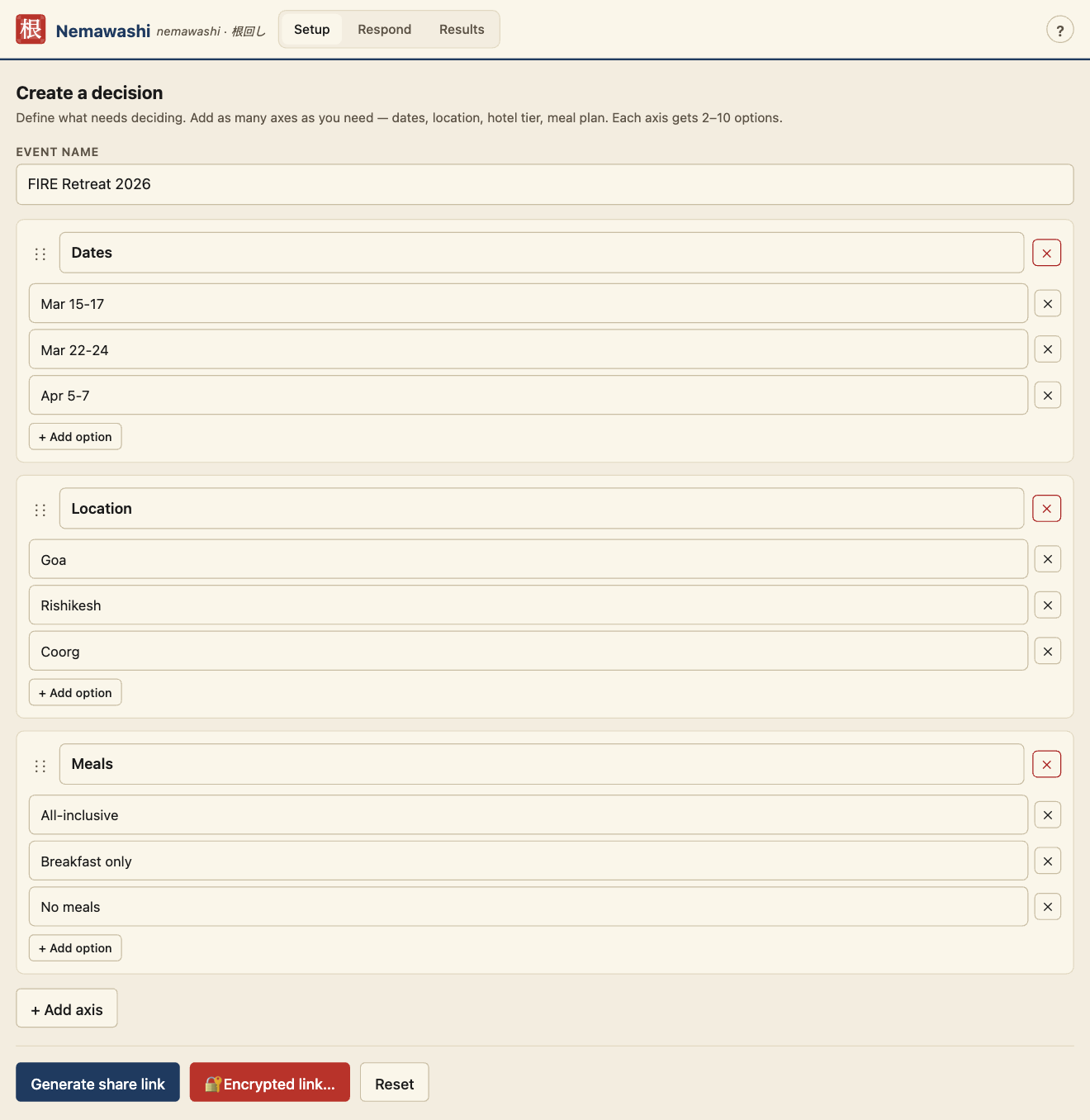
Open the Setup tab. Give your event a name. Then add as many axes as your decision has dimensions — dates, location, meal plan, budget tier, whatever. Each axis gets 2–12 options.
In this example, "FIRE Retreat 2026" has three axes (Dates, Location, Meals), each with three options — enough for 3×3×3 = 27 possible combinations.
Don't build from scratch — pick one of ten templates (Dinner out, Weekend trip, Team offsite, Movie night, Birthday, Book club, Meeting time, Potluck, Group gift, Vacation). Each loads a pre-filled event you then edit. Shown automatically on a fresh setup, or click 📋 Templates… any time.
Fill in the Expected participants field with comma-separated names. The Results tab will then show "3 of 5 responded" with a progress bar and a "still waiting on" list — so you know when to stop chasing people, and who to chase.
Generate the share link
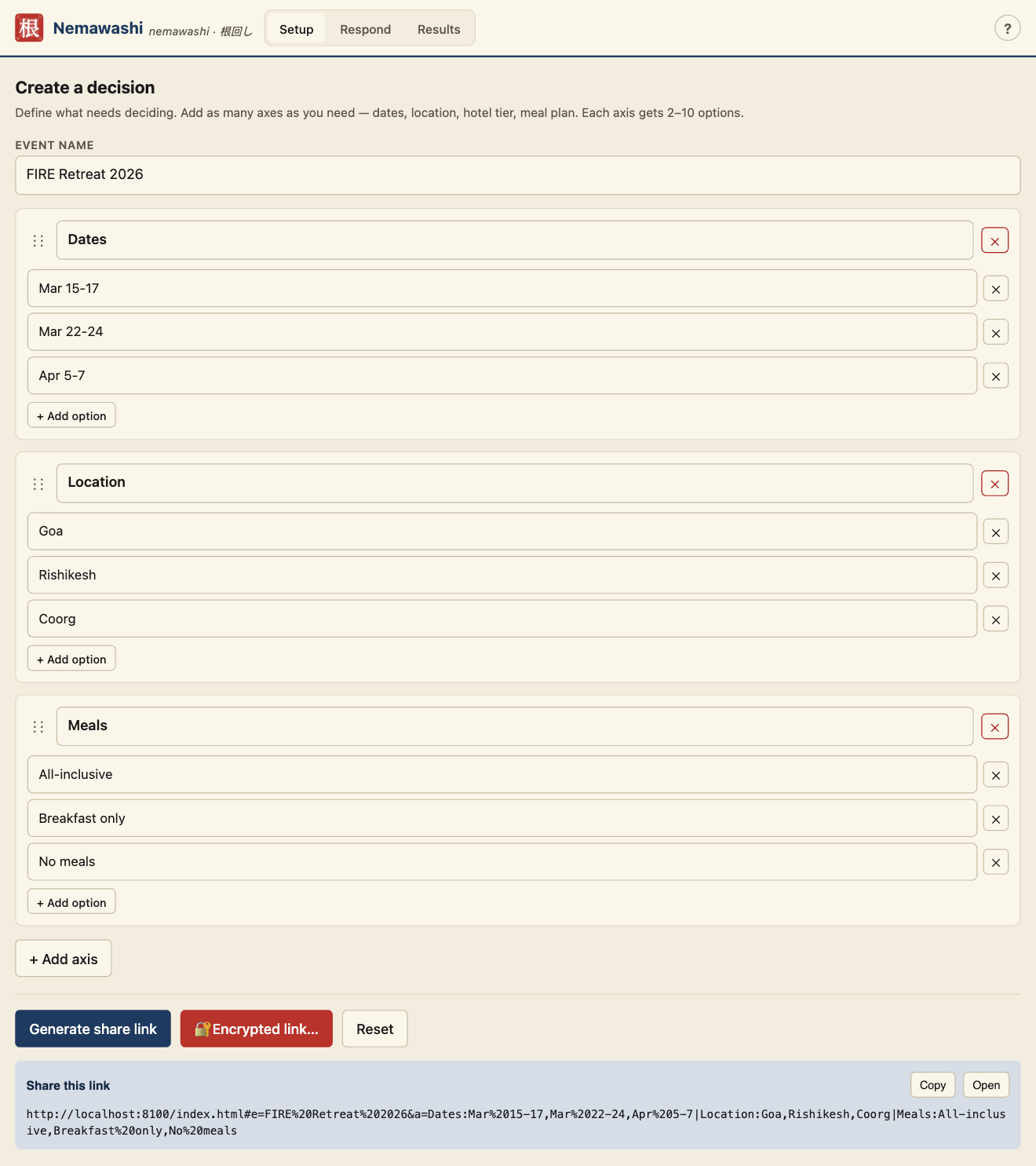
Click Generate share link. Nemawashi encodes the entire event into a URL hash fragment — this is the part of the URL that never gets sent to any server, even by the browser itself. Copy the link and paste it into your group chat (WhatsApp, Slack, email, wherever).
For sensitive events, click 🔐 Encrypted link… instead. Enter a passphrase and Nemawashi produces an AES-256-GCM encrypted link. Send the passphrase out-of-band (in person, SMS, another channel).
Collect responses
As each participant sends their share-back link into the chat, just click it. Nemawashi detects it's a response, auto-merges the scores into your results, and jumps to the Results tab. No copy-paste, no parsing, no manual work.
If you prefer, you can also paste plain response codes (NW:Ravi:3,1,0|…) into the textarea manually — useful for encrypted events or if the link didn't come through a clickable channel.
Read the verdict
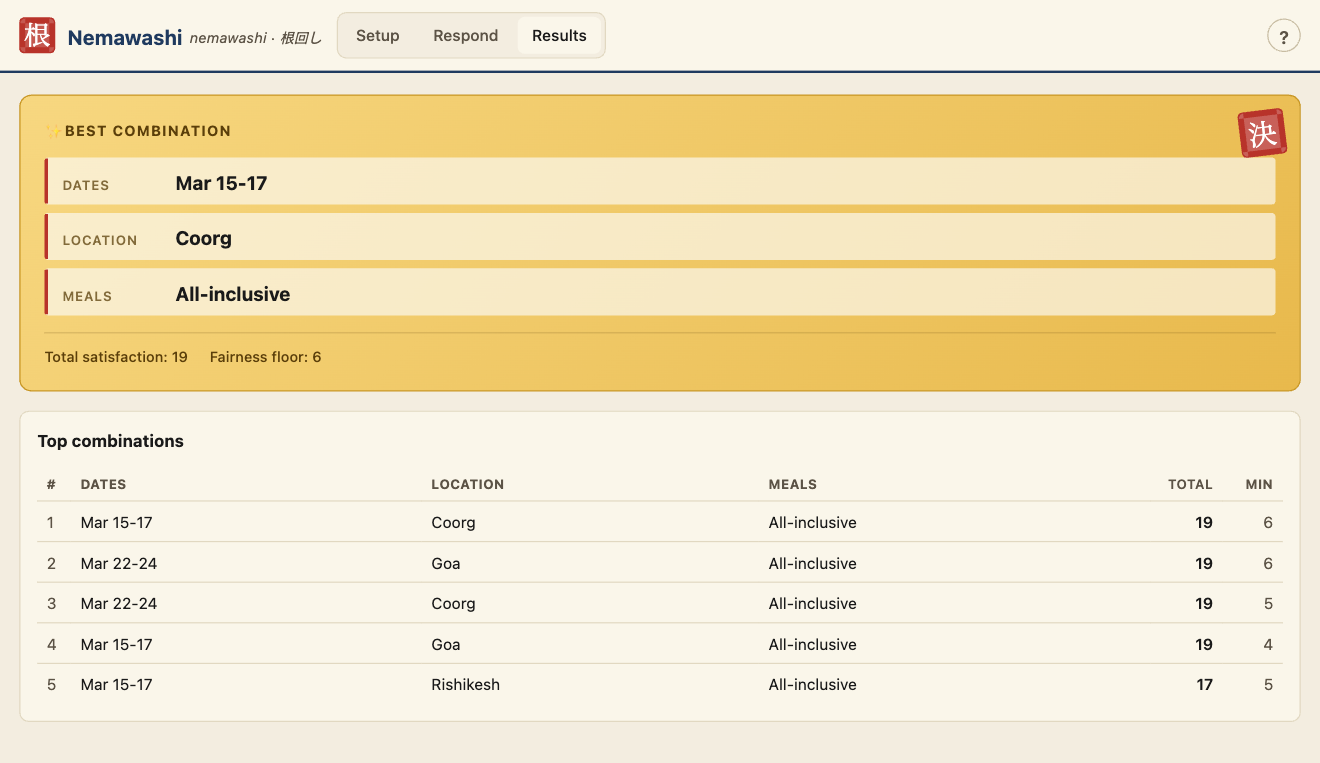
The Best Combination card (marked with a 決 "decided" hanko) shows the winning combination — the choice across every axis that maximises total group satisfaction. Below it, the top 5 ranked combinations let you see near-misses and trade-offs.
Total satisfaction = sum of every participant's score across every axis. Fairness floor = the minimum any one person scored. Ties on total are broken by fairness — the combo that's least bad for the least-happy person wins.
Below the Best Combination stats, a small Why this won disclosure explains the verdict in plain language: which forced constraint made it unavoidable, and which veto, if flexed, would have changed the answer. Builds trust — people stop asking "why did it pick this?".
When the decision is made, the Share the verdict row gives you: 📝 Copy as text (formatted summary for paste-back), 🔗 Copy link (a read-only verdict URL showing just the result — recipients can't see the raw scores or deliberations), and 🖼️ Download image (a polished 1200×630 card with the Japanese palette and the 決 hanko, ready to post in chat or on social).
Run more than one event at a time
The pill bar at the top of the Setup tab lists every event you're tracking on this device. Each pill is one event — tap it to switch, tap the × to delete it, or tap + New event at the end to start a fresh one without losing the others.
A ★ star marks events you created (where you're the organiser). Pills without a star are events you received as a participant. Each event has its own scores and tally — they don't bleed into each other.

Two unrelated groups can both create a "Team dinner" event with identical options — they get separate identities (different salts), so your tally for one never contaminates the other. This is fixed under the hood; you just see two pills in your bar.
Tally on a second device
You created the event on your laptop, but the WhatsApp responses are coming in on your phone. No problem.
Tap the first response link on your phone. You'll see a banner: "Ravi has responded to this event. The organiser tallies responses — you don't need to." Because your phone doesn't yet know you are the organiser, it's playing it safe.
Tap the Tally it here button in the banner. Your phone now claims ownership of this event — the response gets ingested, and from this point onward every new response link you tap on your phone auto-merges into the results, just like on your laptop. One tap per device, on the first response only.
Power tips
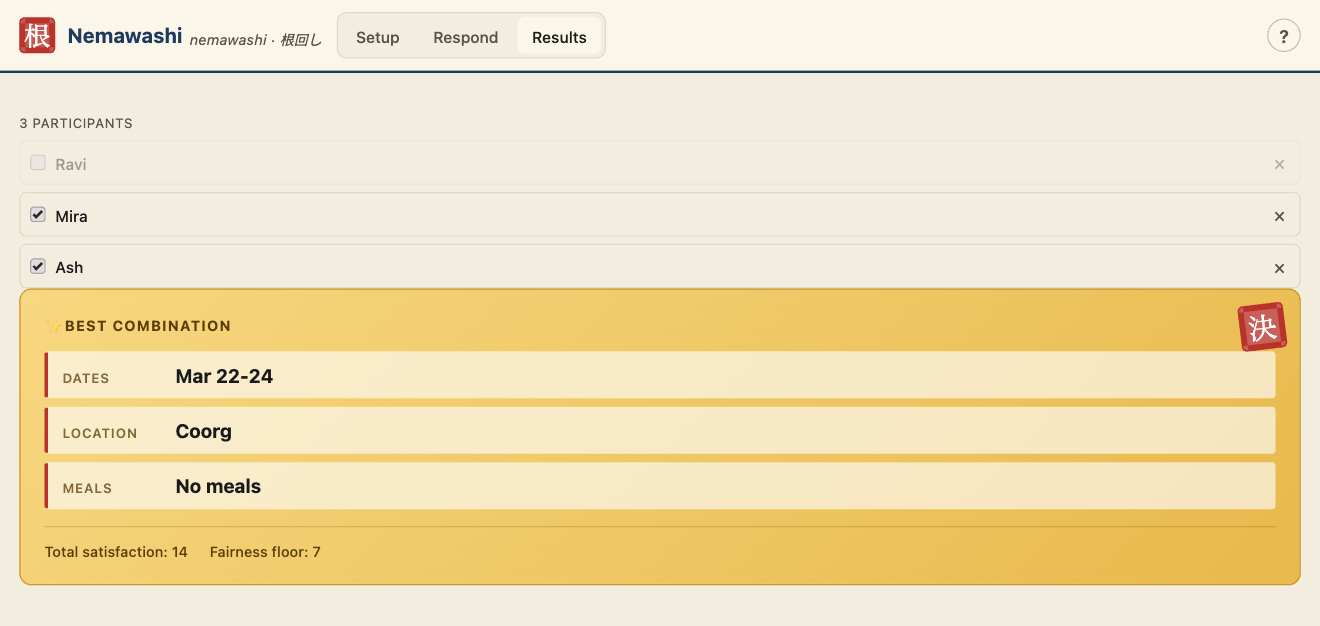
- What-if mode. Uncheck a participant's chip in the left column to see how the ranking changes without them. Useful when someone is wavering and you want to see how much their veto is costing the group. Ranking updates instantly.
- Deadlock detection. If every possible combination has at least one veto, the results tab shows conflict analysis — the closest-to-consensus options plus "if X could flex on Y, N combinations unlock" suggestions. Actively moves the conversation forward instead of just saying "no answer".
- Encrypted events for sensitive decisions. Click 🔐 Encrypted link… instead of the plain Generate link button. Choose a passphrase, share it with your group out-of-band (in person, SMS, another channel). The link uses AES-256-GCM with PBKDF2 200K — nothing leaves your browser.
- Export the verdict. Copy results as text gives you a formatted summary to paste back into chat. Download PNG snapshots the whole results view as an image.
- Saves automatically per event. Each event's scores, pasted codes, and what-if state persist to browser storage under that event's identity. Close the tab and come back later — the pill bar restores everything.
- About this app. Tap the ? button in the header for the scoring legend, then tap About Nemawashi to re-read the gardening lore.
What-if mode in action
Here's what happens when you exclude Ravi from the tally. The original winner (Mar 15-17 / Coorg / All-inclusive) becomes Mar 22-24 / Coorg / No meals. Ravi is dimmed but not removed — flip the checkbox back to restore.
Click the link your friend sent
You'll get a URL in your group chat that looks something like https://nemawashi.naklitechie.com/#e=FIRE+Retreat+2026&a=Dates:Mar+15-17,…. Just click it. Nemawashi opens directly in the Respond tab with the event already loaded — no account, no sign-up, no app to install.
If the link was marked "encrypted", you'll be prompted for a passphrase. Your friend should send that separately.
Score the options
Type your name at the top, then score every option on every axis. Tap to cycle through the four levels:
- 🚫 Block — "I cannot do this." Vetoes the option entirely. Any combination containing it is eliminated.
- 😐 Okay — "I can live with it." Default for unscored options.
- 👍 Like — "I'd prefer this."
- ❤️ Love — "This is my top pick."
You don't have to score everything — the default is Okay, so you only need to mark what you care about. Only block things you genuinely can't do.
Swipe right on a row to upgrade the score one level; swipe left to downgrade. Or just tap — same cycle.
Send your response back
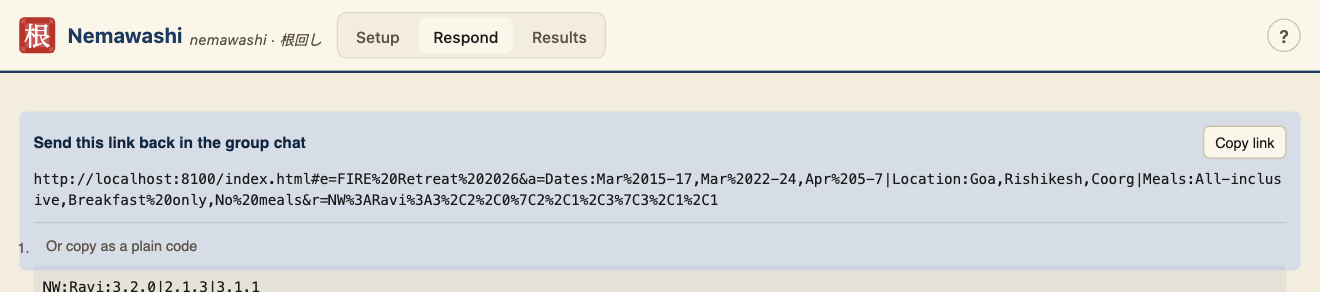
Click Generate share-back link. Nemawashi produces a URL that bundles the event and your scores into one clickable link. Click Copy link, then paste it back into the same group chat.
The link is your whole response compressed into ~250 characters. When the organiser clicks it on their device, their Nemawashi auto-ingests your scores into the results. No copy-paste dance for them, no extra step for you.
Power tips
- Only block things you truly can't do. A Block is a veto — it eliminates every combination containing that option. If you just dislike something, score it Okay or leave it alone. Respect the group's ability to find any valid answer.
- Love sparingly. Save ❤️ for your genuine top picks. If everything is Love, nothing stands out, and the ranking basically reverts to majority vote.
- Your draft saves automatically. If you close the tab mid-scoring, the same link reopens to your in-progress response. Your browser stores it locally — nothing is uploaded.
- Plain-code fallback. If the share-back URL doesn't come through well (some chat apps mangle long links), expand Or copy as a plain code to get the raw
NW:Name:scoresstring instead.
If you tap another participant's link
It happens: someone else sends their share-back link into the same chat, and you tap it out of curiosity (or by accident, because your phone treats links as taps). You'll see this banner:

This is normal — nothing is broken. The banner is telling you that the other person's response is for the organiser to tally, not you. Just dismiss the banner with the ×, and continue scoring your own response on the same screen. Your draft and your scores are untouched.
The Tally it here button is for the organiser, not for you. It tells the app "I'm the one collecting responses on this device." Don't tap it unless you actually are the organiser opening the event from a second device (laptop → phone).